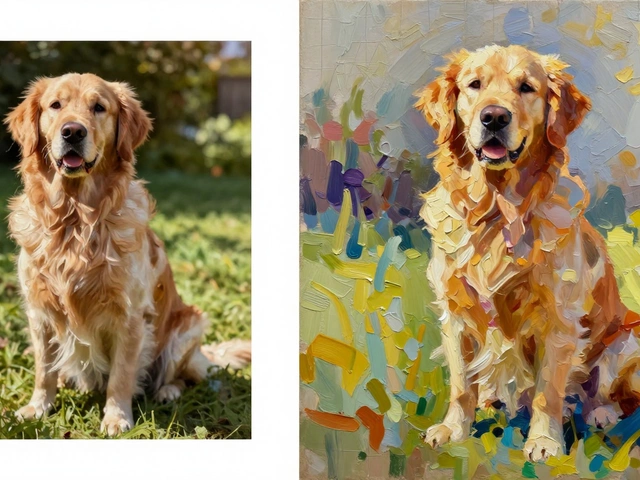
What Is the App That Turns Pictures Into Art? Best Photo-to-Art Apps for Wall Decor
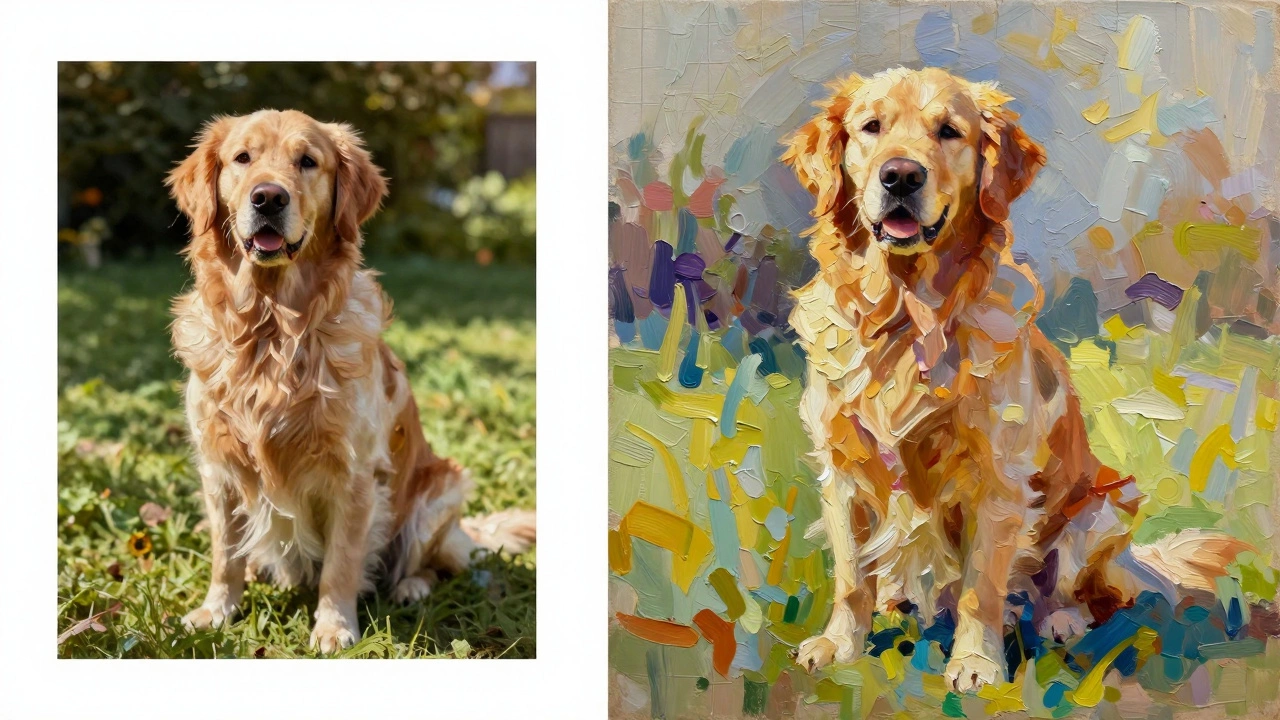
Photo-to-Art Print Resolution Calculator
Print Specifications
Analysis Results
Enter your print dimensions to see if you need to upscale your image.
Have you ever snapped a photo of your dog, your kids, or that perfect sunset and thought, "This would look amazing as a framed painting in my living room"? You aren't alone. The desire to turn personal memories into tangible home decor is huge right now. But there isn't just one single app that does this anymore. Instead, there is a whole ecosystem of tools ranging from simple filters to advanced artificial intelligence platforms.
If you are looking for the app that turns pictures into art, you are likely searching for something specific: either a tool that mimics famous artistic styles (like Van Gogh or Picasso) or an AI generator that creates entirely new artistic interpretations based on your image. In 2026, the landscape has shifted from basic Instagram filters to sophisticated generative AI that can produce gallery-quality prints ready for framing.
How Photo-to-Art Apps Actually Work
To pick the right tool, it helps to understand what’s happening under the hood. Most modern apps use two distinct technologies: style transfer and generative adversarial networks (GANs).
Style Transfer is a technique that applies the visual texture and color palette of a reference artwork onto a source photograph. Think of it like digitally painting over your photo with the brushstrokes of a master painter. This method keeps the composition of your original photo intact but changes its aesthetic feel. It’s great if you want to keep recognizable features of your subject.
On the other hand, Generative AI uses deep learning models trained on millions of images to create new artistic variations. Tools like Midjourney or DALL-E don’t just filter your image; they interpret it. If you upload a photo of a cat and ask for a "cyberpunk oil painting," the AI might change the background, lighting, and even the cat’s pose to fit that style. This offers more creative freedom but less fidelity to the original snapshot.
Top Apps for Turning Photos into Artistic Prints
Not all apps are created equal. Some are designed for quick social media posts, while others focus on high-resolution output suitable for large-format printing. Here are the most reliable options currently available, categorized by how they approach the task.
| App Name | Primary Technology | Best For | Print Quality | Cost Model |
|---|---|---|---|---|
| Prisma | Neural Style Transfer | Quick artistic filters | Medium (72-150 DPI) | Freemium |
| Midjourney | Generative Diffusion | Creative reinterpretation | High (up to 4K+) | Subscription |
| Lensa AI | Portrait Enhancement | Stylized avatars/portraits | High | One-time fee / Sub |
| Canva | Template-based + AI | Design integration | High (300 DPI) | Freemium |
| Deep Dream Generator | Neural Network Art | Surreal/Hallucinogenic art | Variable | Credit system |
Choosing the Right Tool for Your Project
The best app depends entirely on your end goal. Are you making a small gift, or are you decorating a 10-foot wall?
For Quick Social Media Shares: Prisma and Adobe Express
If you just want to see what your vacation photo looks like as a watercolor, Prisma remains a classic choice. It offers dozens of preset styles, from impressionist to cartoon. However, these apps often compress images heavily. While fine for posting on Instagram, the resolution is usually too low for professional printing. If you try to print a Prisma image larger than A4 size, you’ll likely notice pixelation.
For High-Quality Wall Art: Midjourney and Stable Diffusion
If you want museum-grade quality, you need higher resolution and better control. Midjourney, accessed via Discord, has become the industry standard for AI art generation. By using the "image prompt" feature, you can upload your photo and type a text prompt like "oil painting, thick impasto, warm lighting." The result is often stunningly detailed. Because Midjourney generates high-res images, you can upscale them further using tools like Topaz Gigapixel before sending them to a printer.
Stable Diffusion is another powerful option, especially if you run it locally on your computer. It gives you total control over the process through interfaces like Automatic1111. You can use ControlNet to ensure the AI strictly follows the lines and composition of your original photo, which is crucial if you’re turning a portrait into a stylized piece without losing facial recognition.
For Ease of Use and Printing: Canva and Minted
Sometimes you don’t want to wrestle with AI prompts. You just want a pretty picture. Canva has integrated AI tools that allow you to apply artistic effects directly within their design platform. The real advantage here is the workflow: once your image is styled, you can immediately order a canvas print, poster, or framed photo directly through Canva or export it at 300 DPI for local printing. Services like Minted also offer in-app styling where you upload a photo, choose a style (like "modern abstract" or "classic oil"), and they handle the conversion and printing for you.
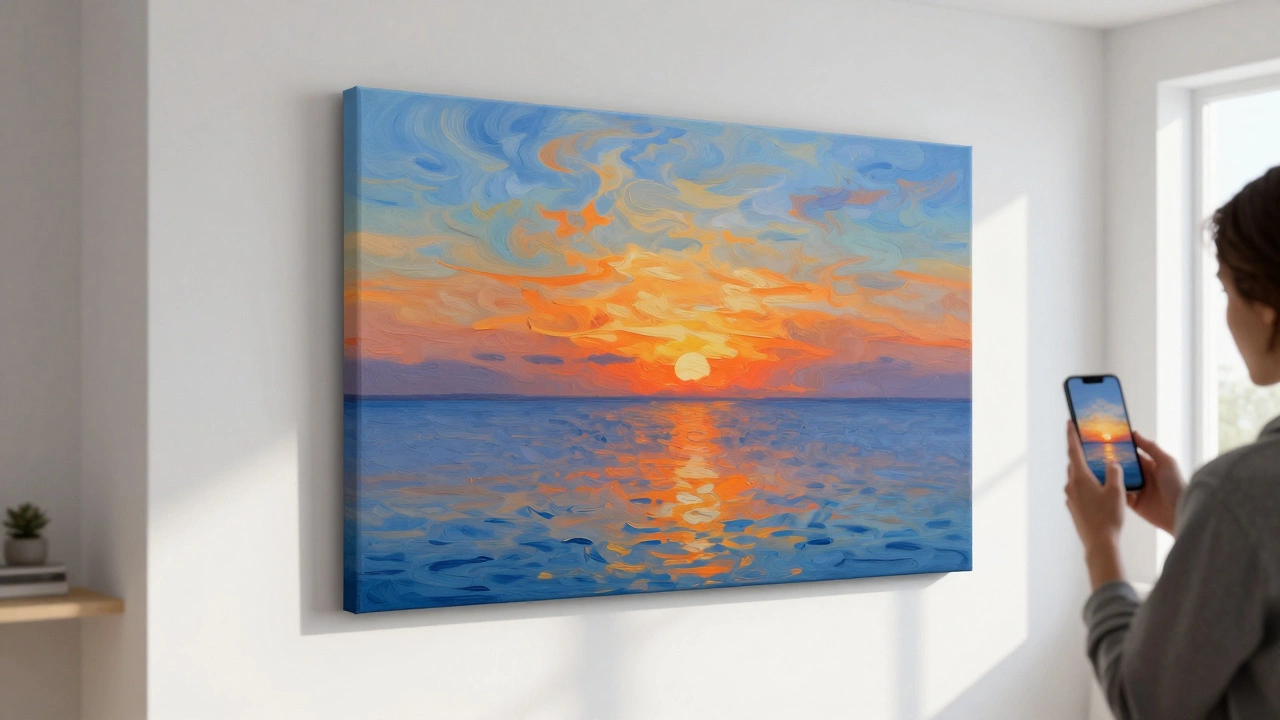
Key Factors for Print-Ready Results
Turning a digital file into physical wall art involves more than just applying a filter. To avoid disappointment, keep these technical details in mind.
- Resolution Matters: Standard phone photos are often 12 megapixels. When you apply AI filters, the software may reduce this resolution. Always check the DPI (dots per inch). For high-quality wall art, you need at least 300 DPI at the final print size. If your app outputs 72 DPI, the image will look blurry when printed large.
- Color Profiles: Screens use RGB (Red, Green, Blue) light, while printers use CMYK (Cyan, Magenta, Yellow, Key/Black) ink. Colors that look vibrant on your phone may appear duller on paper. Convert your image to CMYK before finalizing the design to get a better sense of how it will print.
- Aspect Ratio: Most phone cameras shoot in 4:3 or 16:9 ratios. Standard frames often come in square (1:1) or 2:3 ratios. Cropping your art to fit a frame might cut off important parts of the image. Plan your framing strategy before generating the art.
Step-by-Step Guide to Creating Custom Wall Art
Here is a practical workflow to go from a random photo to a hanging piece of art in your home.
- Select a High-Quality Source Image: Start with the clearest, highest-resolution photo you have. Avoid blurry or poorly lit shots, as AI tends to amplify noise and artifacts.
- Choose Your Style: Decide if you want a faithful representation (use Style Transfer) or a creative interpretation (use Generative AI). For portraits, stick closer to the original to maintain likeness.
- Generate Multiple Variations: Don’t settle for the first result. AI is probabilistic. Generate 5-10 versions and pick the one with the best balance of style and clarity.
- Upscale the Image: Use an upscaling tool like Upscayl (free/open source) or Topaz Photo AI to increase the resolution without losing quality. Aim for a file size that supports your desired print dimensions.
- Edit and Color Correct: Bring the image into a basic editor like Photoshop or even Snapseed. Adjust brightness, contrast, and saturation. Remember that prints are generally darker than screens, so bump up the exposure slightly.
- Order Your Print: Upload your final file to a reputable print-on-demand service. Look for options that offer archival inks and acid-free paper or canvas to ensure longevity.
Pitfalls to Avoid
Even with the best apps, things can go wrong. One common issue is "AI hallucination" in faces. Generative AI sometimes struggles with human anatomy, creating extra fingers, distorted eyes, or asymmetrical features. Always zoom in on the details before printing. If you’re creating art of people, consider using a style-transfer app rather than a generative one to preserve accurate facial structures.
Another pitfall is copyright ambiguity. While laws are still evolving regarding AI-generated art, using someone else’s copyrighted image as a base for your AI art can be risky. Stick to photos you own or have permission to use. Also, be aware that some AI platforms claim ownership of the images you generate, so read the terms of service if you plan to sell your creations.
From Digital to Physical: Printing Options
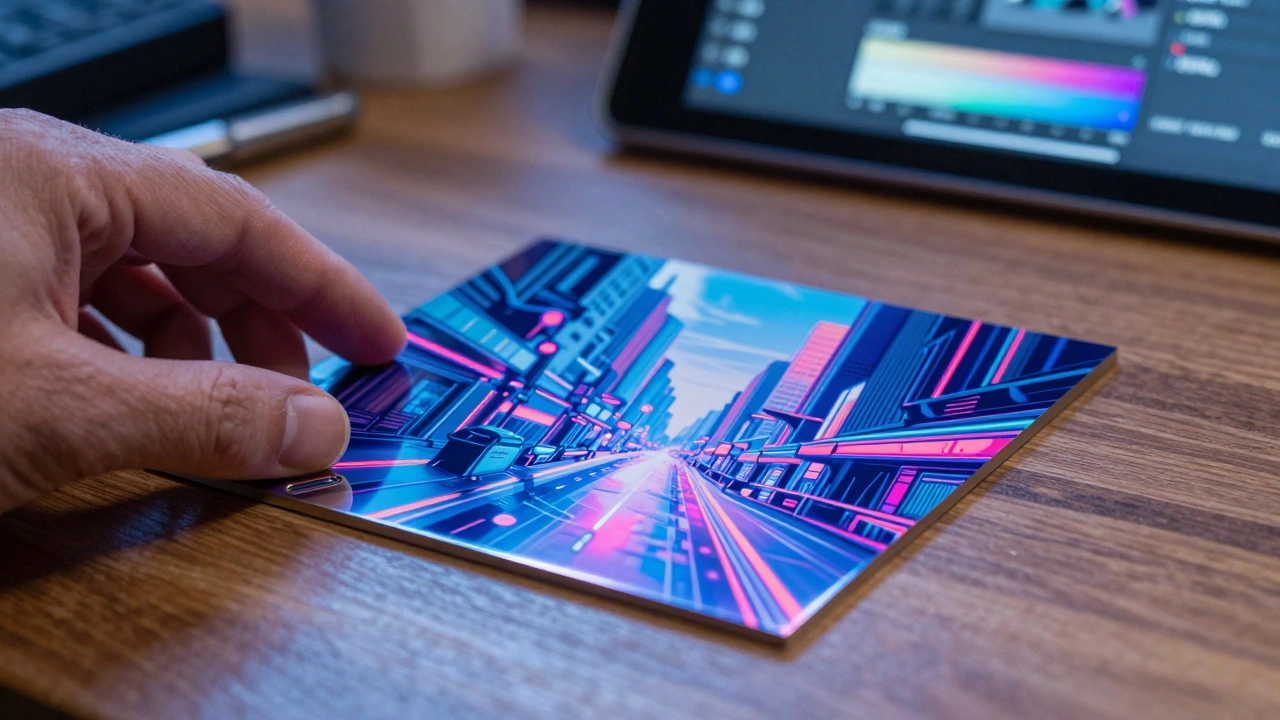
Once you have your digital masterpiece, you need to decide how to display it. Canvas prints are popular for a textured, painterly look that complements oil-style AI art. Metal prints offer a sleek, modern finish that makes colors pop, ideal for abstract or vibrant styles. Acrylic prints provide depth and clarity, perfect for high-detail architectural or nature photography turned into art.
Local print shops often provide better customer service and faster turnaround times than online giants, allowing you to inspect the proof before committing to a full print. Online services like Vistaprint, Shutterfly, or specialized art printers like Fine Art America offer convenience and a wider range of mounting options.
Which app is best for turning photos into oil paintings?
For realistic oil painting effects, Midjourney and Deep Dream Generator are top choices due to their advanced neural networks. For simpler, quicker results, Prisma offers dedicated oil painting filters that are easy to use but lower in resolution.
Can I print AI-generated art professionally?
Yes, absolutely. However, you must ensure the image is upscaled to at least 300 DPI and converted to the CMYK color profile to match printer standards. Most major print-on-demand services accept high-resolution JPEGs or PNGs generated by AI.
Is it free to turn photos into art?
Many apps like Prisma and Canva offer free tiers with limited features or watermarks. Advanced AI tools like Midjourney require a subscription. Open-source options like Stable Diffusion are free if you have the hardware to run them locally.
Do AI art apps distort faces?
Generative AI can sometimes distort facial features, especially hands and eyes. To minimize this, use style transfer apps that preserve the original structure, or use ControlNet in Stable Diffusion to lock in the facial landmarks during generation.
What resolution do I need for a large canvas print?
For a large canvas print (e.g., 24x36 inches), you should aim for an image resolution of at least 300 DPI. This means your file needs to be approximately 7200 x 10800 pixels. If your source image is smaller, use an AI upscaler to enlarge it without significant quality loss.